
New features 2026 Series - Wiring harness and Materials list
Electro Graphics releases the latest 2026 Series of electrical and photovoltaic design software. Here are the most important features and enhancements introduced about wiring harness in Cablo and about materials list in Tabula.
See all new features 2026:
Download brochure Electro Graphics New features 2026

Using Microsoft SQL Server databases for archive management
In 2025 it is possible to use Microsoft SQL Server©, SQLite© and MySQL© technologies as database support for Electro Graphics software archives and libraries.
Significant speed increase in search and edit operations on project files and archives
Electro Graphics offers the ability to share its software archives over a company network, thus facilitating collaboration and ensuring access to up-to-date and customised data for all operators.
Sharing software archives allows more operators to work on the same data at the same time, avoiding duplication and ensuring consistency of information. It ensures that everyone always uses the latest archives, avoiding errors due to outdated versions. Allows for easy use of customised configurations, increasing efficiency and productivity.
Electro Graphics recommends using a network server to share archives. This solution offers several advantages over direct access to databases:
• Managing large archives is more efficient, providing faster viewing and searching.
• Reduces the impact on network performance, avoiding slowdowns due to heavy usage.
The option of sharing archives on network servers is recommended for sharing archives located on a server, via client/server technology. The advantage over technology with direct pointing to databases lies in the faster handling of large archives. In fact, direct sharing is more susceptible to common network usage and display and search performance may vary.
Electro Graphics supports some of the most popular solutions for enterprise database management:
• Microsoft SQL Server: A commercial relational database management system, developed by Microsoft and known for its high performance and advanced functionality.
• MySQL: An open-source relational database management system, very popular and versatile.
• SQLite: Another open-source relational database management system that can read and write data directly without a client-server architecture; serverless SQLite requires no installation or configuration, which makes it autonomous and less dependent on the operating system.
If you do not already have a server with a SQL database manager, the Electro Graphics installation package includes a simplified and easily configurable version of Microsoft SQL Server Express Edition, ideal for sharing archives in small and medium-sized companies.
Fast access to archives and libraries in remote networking and VPN
Version 2025 introduces a great innovation in the sharing of archives in a company network. Server-based sharing with SQL databases enables faster and more efficient access to symbol libraries and material archives. Work teams can collaborate more effectively on shared projects, always accessing the latest version of symbols and archives. Centralising data on a server ensures consistency and integrity of information, eliminating the risk of discrepancies between different local copies.
New features for job revision
Revising a job involves archiving the entire folder and subfolders into a new subfolder within the same job.
To restore a previous revision, the Set current revision command has been added: it archives the current job into a new revision and then restores the content of the selected revision folder into the current job.
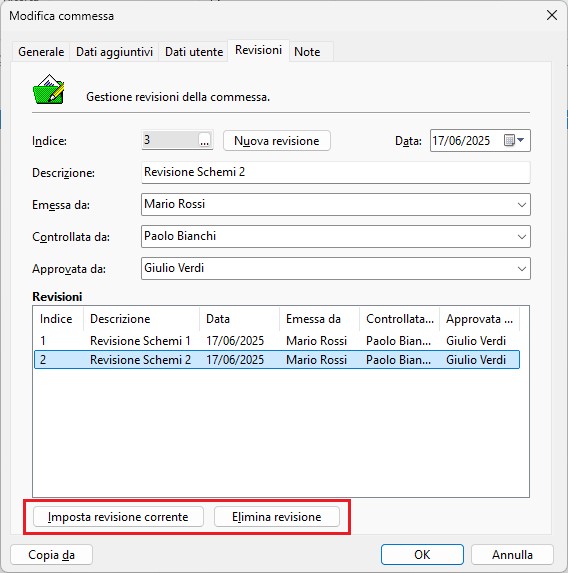
New revision
The contents of the job folder are copied into the \Rev. subfolder. The Index value is incremented by one.
Rename revision index
To modify the revision index, click the […] button next to the Index field. The revision subfolder will be renamed using the new index.
Set current revision
Restores the selected revision into the job folder:
1. Archives the job folder into the \Rev. subfolder, overwriting existing content;
2. Copies the contents of the selected revision folder into the job folder, overwriting existing content;
3. Updates the revision list with the new revision;
4. The selected revision becomes the current revision.
These operations stop if the destination folders contain locked files.
Delete revision
Deletes the selected job revision:
1. The revision subfolder is renamed to [Deleted]Rev.;
2. The revision is removed from the revision list.

Representation of multi-level terminals in Cablo
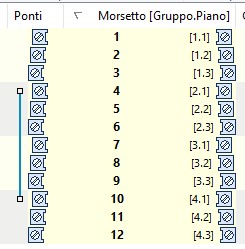
In Cablo (Terminal Blocks and Connectors tab), multi-level terminals are displayed with representative icons that feature a slight offset corresponding to their level.
This graphic effect helps identify the various levels of the terminals belonging to a given group.
Utility functions for using multi-level terminals
Additional features have been implemented to simplify the use and reassignment of levels in multi-level terminal blocks. The main enhancements are listed below:
Increase in levels for multi-level terminals
To make it easier to add special terminal elements to the terminal archive—especially those available on the market with a high number of levels—the maximum number of definable levels for a multi-level terminal has been extended to 16.
Alphanumeric level management
In the Schematic Configuration Parameters, under the Terminals tab, a new checkbox allows interpreting multi-level terminal levels using alphabetic characters. Therefore, instead of numbering levels as 1, 2, 3, … they can be assigned as A, B, C, …
This option was introduced to simplify the distinction between the terminal group (the grouping of the physical terminal for inserted symbols) and the level used for wiring.
Note. When selecting the terminal representation block for terminal block layout (where the level is used in forming the block name), the level is treated as numeric even if alphanumeric mode is used. In this context, A corresponds to 1, B to 2, etc.
Adjacency of multi-level terminals in layout
When this option is enabled, the elements of multi-level terminals are always listed consecutively in the table; otherwise, they may be listed according to the ordering chosen before generating the table.
With this option enabled, the blocks of a multi-level terminal are now represented adjacent to one another and are no longer interrupted by a sheet change.
Custom cable ordering
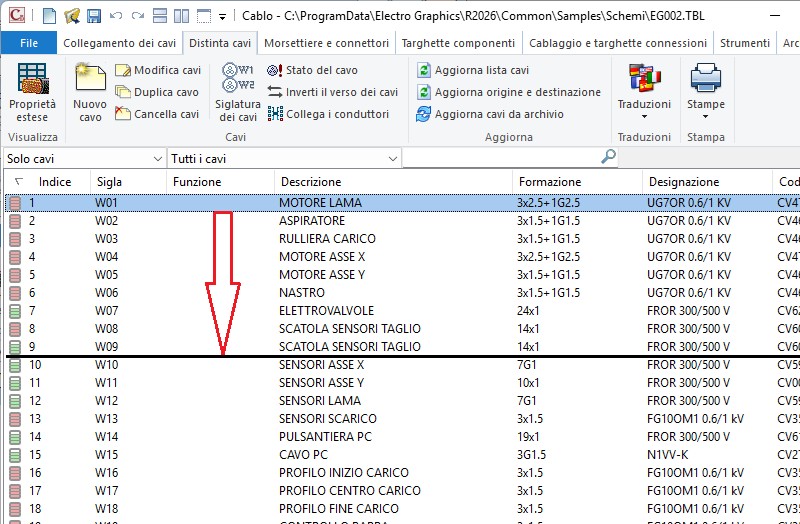
In the Cable List, a custom cable ordering feature is available.
To enable custom ordering, select the Cables only display mode and click the Index column. Then select a cable with the mouse and use drag-and-drop to move it to a new position.
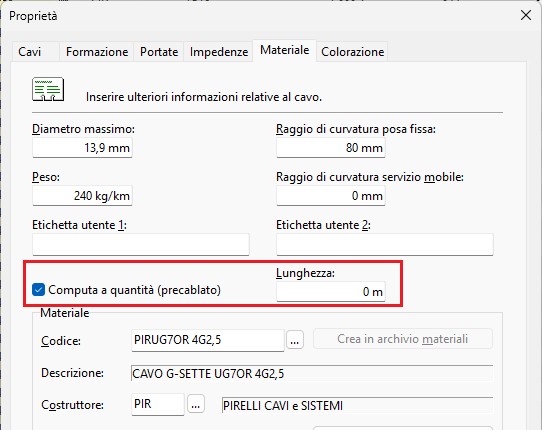
Print: Cable list
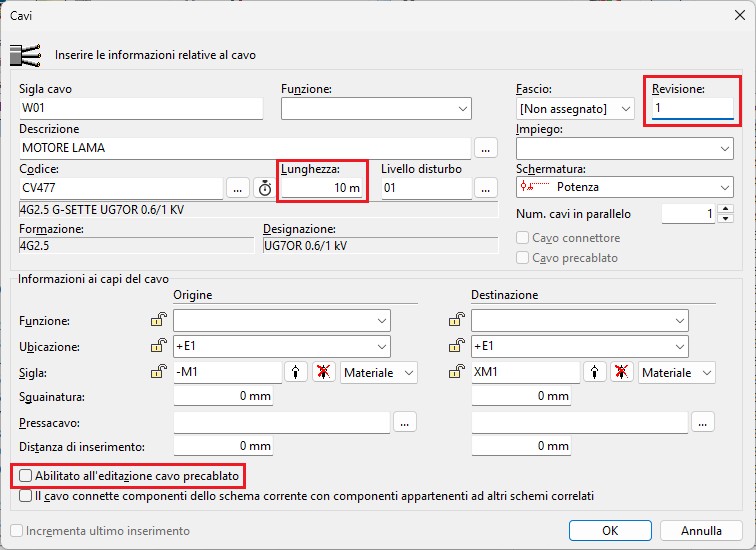
Cable list printouts now also include the Revision column, which is hidden by default.
Printouts can be sorted according to the custom ordering (Index).
Prints: Cable table
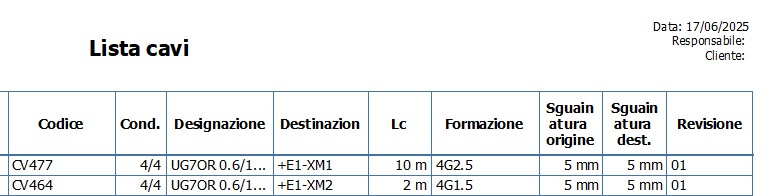
The Cable List (Cablo) and Cable List Table (CAD) printouts also include the optional columns Source stripping and Destination stripping.
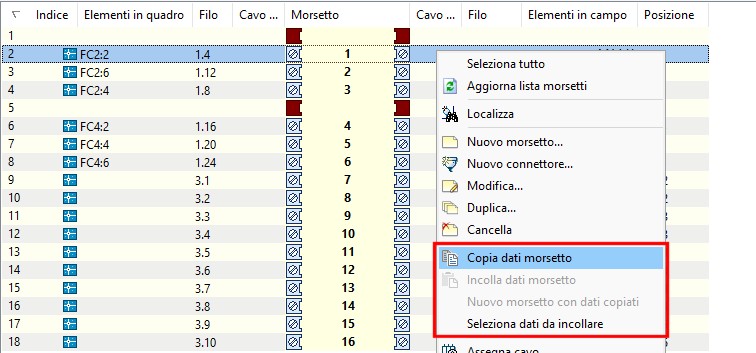
This function, available in Cablo under the Terminal Blocks and Connectors page, allows copying certain data from one terminal and pasting it into selected terminals. This operation speeds up the process of assigning terminal data, especially accessory codes.
To perform terminal data copy/paste operations:
1. Select the terminal from which to copy the data and, from the contextual menu (right-click on the selected terminal), choose Copy terminal data.
2. Select the terminals into which the data should be imported, even if they belong to a different terminal block. From the contextual menu (right-click on the selected terminals), choose Paste terminal data.
3. Select the function New terminal with copied data from the contextual menu (right-click on the terminal list) to create a new terminal pre-filled with the previously copied data. The new terminal is added at the end of the terminal list of the current terminal block.
Note. The Select data to paste function provides access to the Copy/Paste Preferences dialog window, where you can choose which data items to copy from the available options.
Price-type field in user data in the materials archive
Materials archive
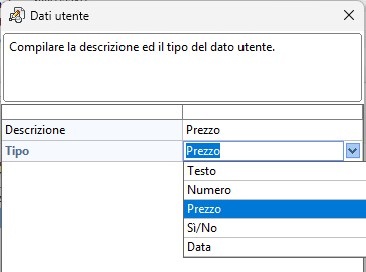
A new Price data type has been introduced in user-defined fields.
This is a numerical value automatically formatted according to the currency settings defined in the Currency command in Jobs.
Custom printouts now include the new user-defined Price field among the optional columns.
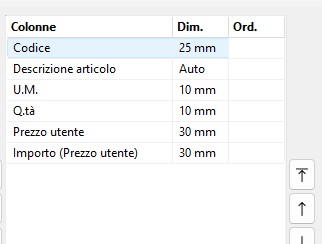
When the Amount column is present, the last page includes the sum of all amounts.


Start page
Setup
File selection and opening
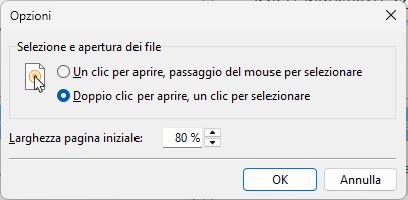
Operating modes for selecting and opening a project file.
Single click to open, mouse hover to select.
Default mode, requiring exclusive mouse use.
Double click to open, single click to select.
Mode that facilitates keyboard use:
• Using the mouse: click once on the file name to select, double-click on the file name to open;
• Using the keyboard: use the Tab key to select the quadrant, the Up/Down Arrow keys to select the file name, and the Enter key to open the file.
Start page width [%]
Sets the width of the start page proportionally to the width of the main window.
Open projects
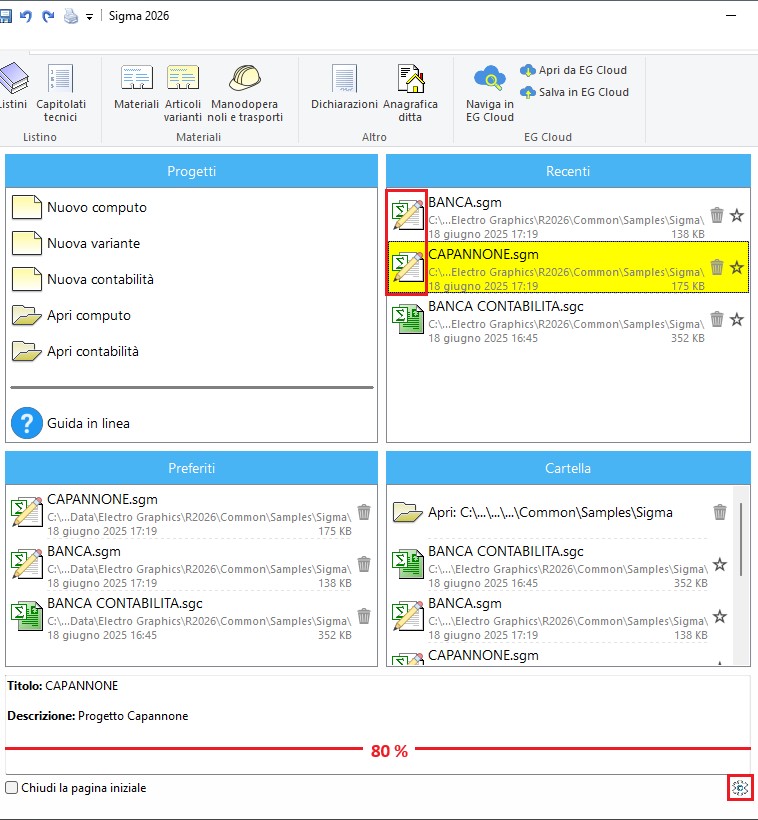
In the file lists of the three panels (Recent, Favorites, Folder), open projects are highlighted with a pencil icon.
Open a project to return to design mode.
Request for quotation in PDF
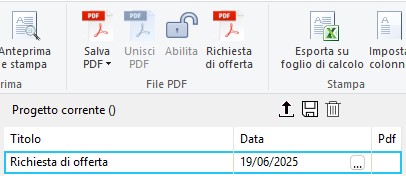
On the ribbon, under the Printouts page, in the PDF Files group, the Request for quotation command generates a PDF printout using the following procedure:
1. Select a Price List–type printout.If the list of printouts is empty, a new printout is generated with default settings, named Request for quotation.If the list is not empty but no printout is selected, the first one in the list is automatically selected.
2. Select the name and path of the PDF file.
3. Fill in the text fields with the prices of the referenced items.
4.It is possible to import the prices into the estimate from the completed PDF file.
Import prices from PDF file
A new command is available: File + Import + Import from PDF file, which imports prices from the PDF into the selected price class.
This command imports only PDF files generated by Sigma using the Request for quotation command.
Metric estimate printout
An option for printing cost analyses is available in the Advanced page.
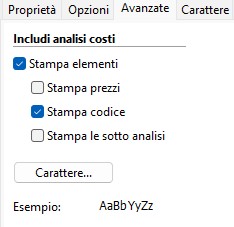
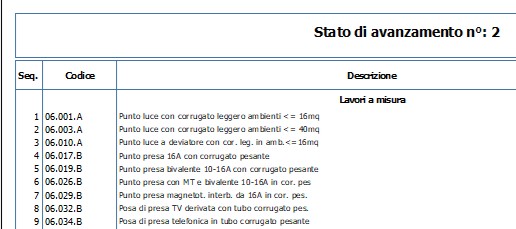
An optional Seq (Order number) column has been added.
Using the Order number option, the Seq column is filled either with the item’s order number assigned in the price list or with the progressive print number.
Price list
Item/chapter code
The maximum length of item and chapter codes has been increased to 50 characters. This allows importing regional price lists with very long coding structures.
Highlight chapters, highlight items
The Highlight chapters command, available in the ribbon under the View page, applies bold formatting to the first selected description type (Short, Concise, or Extended).

The Highlight items command applies bold formatting to the text of the first data row.

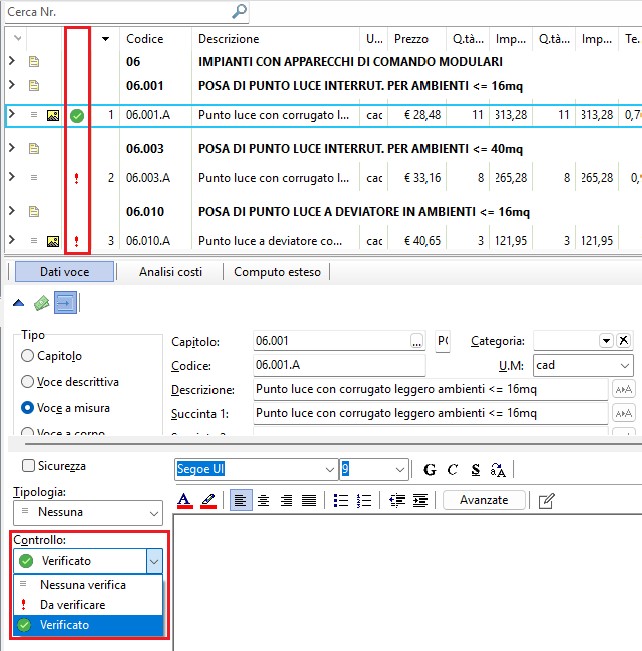
 To be verified
 Verified
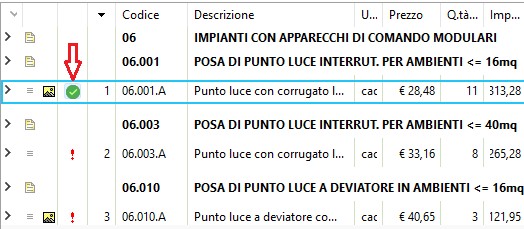
The property can be selected in the Item Data page or directly in the price list grid, in the third column, using the button identified by the check icon.
Utilities
On the ribbon, under the Estimate page in the Price List group, the Control command is available, allowing the option to be applied to all items in the active filter.
Visualization
On the ribbon, under the View page in the Filter group, a display filter based on the Control option is available.
Under the Filters page, a print filter is available to print items according to the Control option.
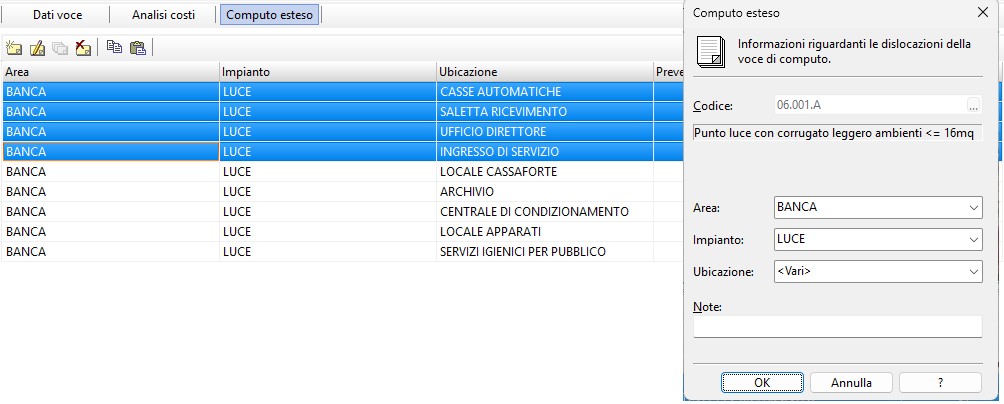
Extended estimate
Multi-selection editing has been enabled in the extended estimate grid.
1. Select the rows to modify using:
- mouse: Ctrl + Click;
- keyboard: Shift + Up/Down arrow;
2. Edit command: allows modifying the fields Area, System, Location, and Notes.
ChatGPT ha detto:
Update of predefined price lists and regional/provincial public administration lists
Regional or provincial price lists, as well as the technical specifications of tender documents, are continuously kept up to date and published with each release of the corresponding public administration sources.
See all new features 2026: