
New features 2026 Series - Photovoltaic engineering
Electro Graphics releases the latest 2026 Series of electrical and photovoltaic design software. Here are the most important features and enhancements introduced about photovoltaic engineering in the software Solergo

See all new features 2026:
Download brochure Electro Graphics New features 2026
Start page
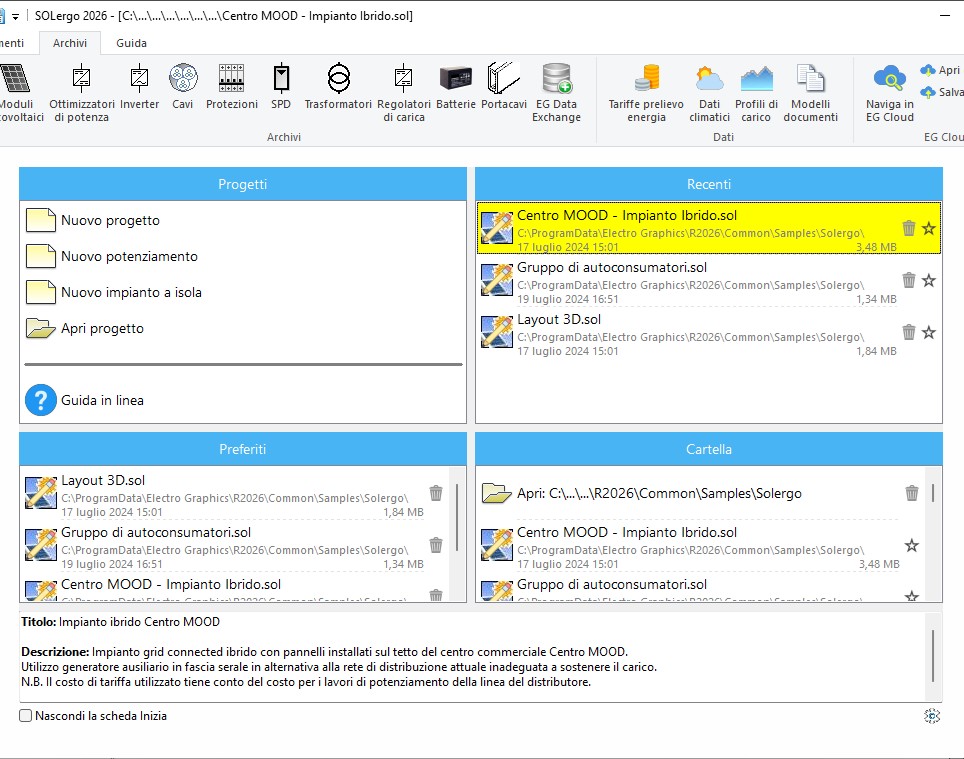
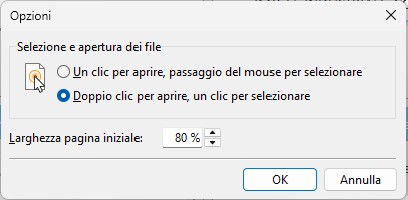
The start page displays the lists of project files divided into Favorites, Recent, and Folder.
The startup window, shown when Solergo is opened, displays several useful commands and information organized into panels.
Projects
The Projects panel includes the commands for creating and opening a project.
Recent
The Recent panel shows the list of the most recently opened documents, ordered from most recent.
To add a file to the Favorites list, click the star icon to the right of the name.
The Recent files list is also available on the ribbon and can be viewed through the File menu.
To remove a file from the list, click the trash icon to the right of the file name.
Favorites
The Favorites panel lists favorite projects.
To remove a file from the list, click the trash icon to the right of the file name.
Folder
The Folder panel lists the projects contained in the selected folder.
Select a folder using the Open command.
Projects
The file names in Favorites, Recent, and Folder lists include at the end the description assigned in Jobs.
The description can be modified using the Edit description command available in the contextual menu on the file name.
The file must belong to a job.
The pencil icon indicates projects opened in multi-document mode.
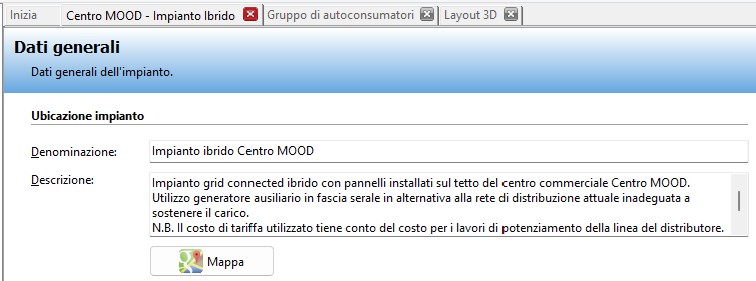
The bottom panel shows the title and description contained in the selected project file.
ChatGPT ha detto:
Single inverter option
An alternative solution to the general case is to use a single inverter with multiple MPPT inputs to which the module strings are connected (each string must still consist of identical modules).
In this case, you must enable the Single inverter (per section) option in the section properties, which allows connecting strings with different modules to a single inverter (per section).
All generators in the same section are connected to the inputs of the inverter assigned to the first generator of the section, in sequential order.
The option can be selected in the Sections table or in the Section page.
Note. When the Single inverter option is enabled, manual inverter selection is not allowed; selection must be performed through the assisted sizing function.
The following constraints are also applied:
• The section contains a single inverter with multiple independent MPPT trackers, and each generator is assigned and configured for a specific tracker of the inverter.
• The power fed into the system refers to each individual tracker, and the configurations shown in the selection window display only solutions with one inverter and a number of trackers equal to the number of defined generators. Also, the proposed configuration in terms of number of modules and power refers to a single tracker.
• The protective devices that can be edited in the Components page of each generator refer not to the individual partial generator but actually to all generators in the section.
• Once the inverter is selected in the first generator of the section, only configuration proposals with the same inverter will be shown for the subsequent generators.
• The measurement panel marker can be inserted only in the layout of the first generator of the section.
• The cable for the Inverter–Measurement panel connection appears only for the first generator of the section.
• The electrical diagram correctly shows a single inverter and displays the module model and configuration under each graphic symbol of the PV array.
The Delete, Copy, and Paste commands in the generators table are disabled when the Single inverter option is active.
Verification of photovoltaic module protection current
The new edition of the CEI 64-8 standard has introduced, with article 712.431, an additional verification concerning backfeed currents between strings connected in parallel.
When at least three strings are present, and if the module’s protection current value is positive, the electrical diagram generation process checks that a fuse with a nominal current lower than the module’s protection current is installed.
Exports
Several export commands to spreadsheet format are available in the ribbon, under the Tools page, in the Project group.
Export producibility data
Exports the table of hourly monthly production.
Generation profile
Exports producibility data for Ampère.
String wiring table
Exports the list of strings divided by generator, including data such as inverter number, trackers, inputs, and modules.
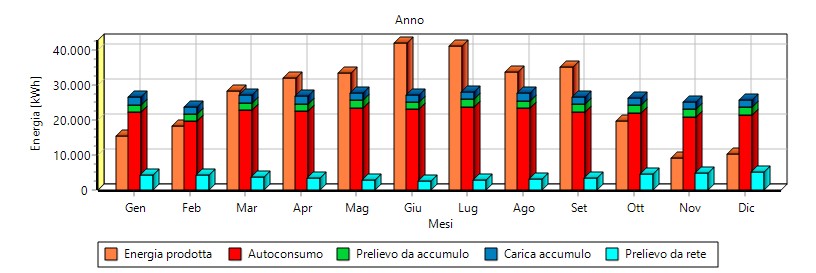
Production and consumption graph
Storage recharging
The production and consumption graph in the Consumption page also displays the energy produced and used to recharge the storage system.
ChatGPT ha detto:
The Image watermark option allows selecting an image file to use as the background of documents generated in .rtf format.
To view the watermark in an .rtf file, it is recommended to use an advanced text editor such as Microsoft Word.
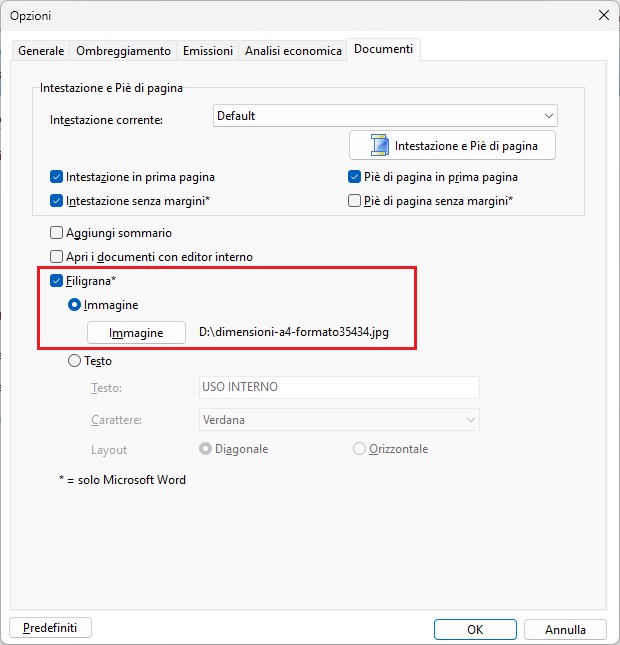
The Image watermark option allows selecting an image file to use as the background of documents generated in .rtf format.
To view the watermark in an .rtf file, it is recommended to use an advanced text editor such as Microsoft Word.
Revision of technical and economic documentation in relation to regulatory updates
The technical and economic documentation produced in Solergo has been reviewed and updated according to the latest regulatory changes.
Extension and update of module, inverter, and storage system databases
New series have been added to the archive for all types of devices used in a photovoltaic system.
See all new features 2026: